
Magento 2
<!–
–>

Efficient Magento inventory management is essential for keeping product availability accurate, preventing overselling, and maintaining a reliable fulfillment workflow. Whether you run a single warehouse or distribute stock across multiple locations, Magento provides built-in tools for controlling product availability along with other related parameters.
The good news is that modern Magento 2 inventory management goes beyond basic quantity tracking. With Multi-Source Inventory (MSI), merchants can work with multiple inventory sources, combine them into stocks, manage salable quantities, and organize fulfillment across warehouses, stores, and other locations. At the same time, Magento 2 stock management can be extended through ERP, WMS, supplier, and other inventory management integrations when native functionality is not enough.
The bad news is that inventory management in Magento 2 becomes more and more complicated with every new warehouse you connect to your ecommerce stack. In this guide, however, we explain how to make this process as user-friendly as possible. You will learn what Magento inventory management is, how Magento 2 stock management works, and how to configure both global and product-level inventory settings, no matter how huge your warehouse network is. You will also learn about practical stock optimization techniques, external Magento inventory management integrations, and advanced MSI import and export workflows (including import/export of stock sources and products with MSI data) for keeping inventory data synchronized across multiple sources and systems.

Table of contents
- What Is Magento Inventory Management?
- How Magento 2 Inventory Management Works: Adobe Commerce & Open Source Inventory Architecture Explained
- Magento 2 Stock Management: General Inventory Settings
- Magento 2 Inventory Management at the Product Level
- Magento Inventory Management Techniques for Better Stock Control
- Magento Inventory Management Integration: ERP, WMS & External Systems
- Advanced Magento 2 Inventory Management: MSI Import & Export
- Final Words: Build a More Efficient Magento Inventory Management Workflow
- Magento Inventory Management FAQ
What Is Magento Inventory Management?
Magento inventory management is the set of techniques based on built-in tools of Magento Open Source and Adobe Commerce used to track product quantities, control stock availability, manage inventory locations, and determine how much inventory can be sold through a particular sales channel. It helps merchants keep storefront availability synchronized with actual inventory while supporting order processing and fulfillment.
In a simple store, Magento inventory management can involve tracking the quantity of each product in a single location and automatically changing its stock status as products are sold. More complex businesses, however, can use multiple warehouses, physical stores, pickup locations, or other fulfillment points and distribute inventory between them.
Adobe Commerce and Magento Open Source include the Inventory Management functionality, formerly commonly referred to as Magento 2 Multi-Source Inventory (MSI). It supports both single-source and multi-source configurations and provides mechanisms for tracking on-hand quantities, calculating salable inventory, protecting inventory during checkout, and selecting inventory sources for fulfillment.
As a result, Magento 2 inventory management is not limited to displaying a number in the Qty field. It connects several parts of the ecommerce workflow:
- how much inventory physically exists;
- where that inventory is located;
- which products are available for sale;
- which websites can sell particular inventory;
- how much inventory can currently be sold;
- whether customers can place backorders;
- when low-stock and out-of-stock thresholds apply;
- how orders affect available inventory;
- and which source should fulfill an order.
Before we go any further, it is also essential to notice that Magento provides global inventory configuration as well as product-level controls. It means that you, as a store administrator, can establish general stock rules for the catalog and override applicable settings for individual products when necessary.
Magento Inventory Management vs Magento Stock Management
Now, let’s clarify the difference between Magento inventory management and Magento stock management. Although both terms are often used interchangeably, they can describe slightly different scopes.
Magento stock management usually refers to the direct control of product availability. This includes quantities, In Stock and Out of Stock status, minimum and maximum order quantities, backorders, stock thresholds, quantity increments, and other settings that determine whether and how a product can be purchased.
Magento inventory management, in turn, represents a broader concept. It includes stock management but also covers the structure behind that stock: inventory sources, stocks assigned to sales channels, salable quantities, reservations, multi-location fulfillment, and synchronization with external inventory systems.
For a merchant operating one website with inventory stored in a single warehouse, Magento 2 stock management may therefore be relatively straightforward. The store tracks quantities, applies stock rules, and updates availability as orders are processed.
The distinction becomes more important when inventory is distributed across several locations. Magento can assign product quantities to individual sources and aggregate inventory through stocks connected to sales channels. This allows the platform to distinguish between physical inventory at a particular location and the quantity currently available for sale through a website. Looks a bit confusing? Don’t worry, cause we will straighten things out below.
Key Magento Inventory Management Capabilities
The broad set of inventory management capabilities that Magento provides for both relatively simple catalogs and more complex multi-location operations include:
- Single- and multi-source inventory. A merchant can manage Magento 2 inventory from one location or assign products and quantities to multiple sources, such as warehouses, stores, pickup points, or drop shippers. Adobe distinguishes these configurations as single-source and multi-source inventory modes.
- Inventory sources. Sources represent the locations where products are stored, managed, or fulfilled. Each source can maintain its own product quantities, allowing Magento to reflect inventory distributed across different locations.
- Stocks and sales channels. Magento stocks aggregate inventory from assigned sources and connect that inventory with sales channels such as websites. This layer determines which source inventory contributes to the products available through a particular sales channel.
- Quantity and salable quantity tracking. Magento differentiates between the physical quantity held at a source and the salable quantity available for purchase. Salable quantity is calculated using inventory quantities, reservations, and applicable thresholds rather than simply mirroring the number of physical items stored in a warehouse.
- Reservations. When orders affect available inventory, Magento uses reservations to adjust salable quantity without immediately changing the physical quantity assigned to a source. Inventory deductions are reconciled as orders progress through fulfillment, cancellation, or refund workflows.
- Backorders and stock thresholds. Magento lets merchants control whether products can continue to be sold after inventory reaches a specified level. Out-of-stock thresholds and backorder settings provide additional control over how far sales can continue relative to available stock.
- Multi-source order fulfillment. For multi-source inventory, Magento can recommend inventory sources when an order is shipped. Its Source Selection Algorithm evaluates available sources and quantities according to the configured selection method, helping determine where inventory should be deducted.
Together, these capabilities make inventory management in Magento a system that connects product availability with ordering and fulfillment rather than simply maintaining stock counts.
To understand how these components interact, let’s look more closely at the Magento 2 inventory architecture.
How Magento 2 Inventory Management Works: Adobe Commerce & Open Source Inventory Architecture Explained
To better explain the architecture behind Magento 2 inventory, we need to separate physical inventory from the inventory customers can actually purchase. This will help us explore more in-depth nuances of Magento 2 inventory management because neither Adobe Commerce nor Magento Open Source simply looks at a single product quantity and decides whether an item is available. In both editions, the Inventory Management system connects sources, stocks, sales channels, salable quantities, reservations, and fulfillment rules.
In a single-location store, much of this structure works in the background. Magento uses the Default Source and Default Stock, so inventory management may appear similar to traditional product quantity tracking.
In a multi-location environment, however, the distinction becomes essential: the same SKU can have different quantities across warehouses or stores, while Magento calculates how much of the combined inventory can be sold through a particular website.
Let’s look at the basic Magento inventory flow:
Source → Stock → Sales Channel → Salable Quantity → Reservation → Source Selection → Shipment
Below we examine each of its components.
Sources: Where Magento Inventory Is Stored
In Magento 2, a source represents a location where inventory is managed and, for physical products, potentially fulfilled. It can represent a warehouse, brick-and-mortar store, distribution center, pickup point, or another location holding stock.
Magento starts with a Default Source. Merchants operating from a single inventory location can use it without creating additional sources. Businesses with inventory distributed across several locations, in turn, can create multiple sources and assign product quantities to each one.
For example, a product with the SKU PRODUCT-A might have:
| Source | Quantity |
| NY Warehouse | 60 |
| Berlin Warehouse | 25 |
| London Store | 15 |
| Total physical inventory | 100 |
Magento does not treat these 100 units as one physical quantity. Instead, it knows where each portion of inventory is located, maintaining quantities per source for multi-source products. This makes source-level inventory useful not only for stock tracking but also for fulfillment because the system can later determine which location should supply a shipment.
And a source itself can contain location information. This geographic data becomes particularly important when fulfillment logic considers the distance between inventory locations and the customer’s shipping address.
Here, we witness the first important distinction in Magento inventory management:
A source represents where inventory physically exists.
However, having a product available at a source does not by itself determine whether customers on a particular Magento website can purchase it. That is where stocks enter the inventory structure.
Stocks and Sales Channels: Where Magento Inventory Can Be Sold
In Magento 2, a stock is a virtual aggregation of inventory connected to a sales channel. Instead of representing a physical warehouse, it links one or more inventory sources with the website that can sell their products.
Consider a Magento installation with three inventory sources:
- US Warehouse;
- EU Warehouse;
- US Retail Store.
A merchant could create one stock for a US website and another for a European website:
| Magento Stock | Assigned Sources | Sales Channel |
| US Stock | US Warehouse, US Retail Store | US Website |
| EU Stock | EU Warehouse | EU Website |
The same physical source can participate in inventory structures where appropriate, while the stock determines which available source inventory contributes to a particular sales channel.
This structure is important because, as we’ve already mentioned, Magento stock management does not simply combine every available unit in the system into one global quantity. Magento calculates product availability in the context of the stock associated with a sales channel.
Adobe describes stocks as aggregated virtual inventories that map sources to sales channels. A sales channel is assigned to a stock, while a stock can aggregate one or several sources.
For a single-source merchant, Magento creates much of this structure automatically:
Default Source → Default Stock → Website
For multi-source merchants, custom sources and stocks make it possible to create more sophisticated inventory configurations.
For example, a company may keep 500 units of a product globally but make only the inventory associated with European warehouses available to its European storefront.
This leads to another important distinction:
Sources tell Magento where products are stored. Stocks tell Magento which inventory can be sold through a sales channel.
Quantity vs Salable Quantity in Magento 2
Now that you are familiar with sources and stocks, we need to explore another important concept in Magento 2 stock management — quantity and salable quantity. Although these two terms are related, they are not necessarily the same. Let’s provide some clarity.
Quantity represents on-hand inventory. In a multi-source environment, Magento maintains this value separately for each source.
If a product has:
- 40 units in Warehouse A;
- 30 units in Warehouse B;
- 20 units in Store C;
the combined physical quantity is 90 units.
Salable Quantity, by contrast, represents the virtual quantity Magento considers available for sale through a particular stock and sales channel.
Adobe explains that Magento calculates salable quantity using the inventory associated with the sources assigned to a stock while also accounting for reservations and configured inventory thresholds.
A simplified representation is:
Salable Quantity = Inventory Available to the Stock − Reservations − Applicable Inventory Thresholds
Suppose two sources assigned to the same stock contain:
| Source | Physical Quantity |
| Warehouse A | 50 |
| Warehouse B | 30 |
| Combined quantity | 80 |
If outstanding orders reserve 12 units, the amount currently available for new purchases can be lower than the 80 units physically present.
That distinction helps Magento deal with a common ecommerce problem: several customers may purchase products while warehouse quantities have not yet been reduced because those orders have not been shipped. Magento therefore does not need to wait for the physical inventory deduction before determining whether more units should still be offered for sale.
Salable quantity is calculated per stock, which also means the same SKU may have different availability depending on which sales channel is requesting it. This is exactly why looking only at a source’s Qty value may not fully explain whether a product can currently be purchased on the storefront.
Reservations: Protecting Magento Stock During Order Processing
In Magento 2 inventory management, reservations connect checkout with physical inventory deduction.
When an order is submitted, Magento does not necessarily remove the ordered units immediately from the quantity stored at a particular warehouse. At that stage, fulfillment may not yet have determined which physical source will ship the order.
Instead, Magento creates a reservation at the stock level. This reservation reduces the product’s salable quantity, helping prevent the same inventory from being sold again while the order continues through processing.
Consider a product with a salable quantity of 20.
A customer places an order for 3 units.
Magento can then reflect:
20 salable units → reservation of 3 → 17 units available for subsequent orders
The physical source quantity does not need to be reduced immediately. When the order reaches shipment, Magento determines the source or sources used for fulfillment, deducts the shipped quantity from them, and compensates the corresponding reservation.
The simplified process looks like this:
- A customer submits an order.
- Magento checks whether sufficient salable quantity is available.
- A reservation reduces salable quantity for the corresponding stock.
- The order proceeds through payment and fulfillment.
- A source is selected for shipment.
- The shipped quantity is deducted from the selected physical source.
- The reservation is compensated.
- Magento recalculates inventory availability.
As you can see, Magento 2 reservations are backend records used to adjust the virtual inventory available for sale while an order moves through its lifecycle.
Magento also creates compensating reservation records when relevant events occur, such as shipment, cancellation, or refund processing. In this model, Adobe describes reservations as append-only operations: the initial reservation and subsequent compensating entries should ultimately balance when the order is completed.
This mechanism is particularly important for Magento 2 inventory management in stores processing many simultaneous orders because it separates two events that do not always happen at the same time:
selling inventory and physically deducting inventory from a fulfillment location.
Source Selection and Fulfillment
Once an order is ready to ship, Magento needs to determine which inventory source should fulfill it.
For a merchant with one warehouse, the answer is obvious. For a business with several warehouses and stores, however, everything is not so straightforward because the same SKU may be available in multiple locations. However, there is a built-in feature that helps a lot.
Magento inventory management is known for its Source Selection Algorithm (SSA) that automatically provides fulfillment recommendations. The algorithm evaluates available sources and recommends which locations and quantities to use for the shipment.
At the same time, Magento supports a Source Priority method that works through the sources assigned to a stock according to their configured order. It starts with the highest-priority source, recommends the available quantity needed from it, and continues to subsequent sources when necessary.
Let’s suppose, you need to sheep 5 items. You have the following sources, priorities, and available quantities:
| Priority | Source | Available Quantity | Shipping |
| 1 | Main Warehouse | 3 | 3 |
| 2 | Secondary Warehouse | 10 | 2 remaining |
Magento can recommend shipping three units from the Main Warehouse and the remaining two from the Secondary Warehouse.
Depending on the configuration, fulfillment can therefore involve:
- shipping the entire order from one source;
- splitting an order between multiple sources;
- creating partial shipments;
- prioritizing selected warehouses or stores;
- or manually overriding the recommended source quantities.
Adobe’s current Inventory Management documentation also describes a Distance Priority algorithm, which can compare the destination with source locations to recommend fulfillment based on geographic distance or travel time. If its required routing data is unavailable, Magento can fall back to source priority.
When the shipment is completed, Magento deducts the corresponding quantity from the selected source or sources. The reservation associated with the order is cleared or compensated, and salable quantity is recalculated to reflect the updated inventory state.
As a result, a typical Magento 2 inventory management workflow looks like this:
- 1. Inventory exists at one or more sources. Each source maintains the physical quantity of the product.
- Sources are assigned to stocks. Stocks aggregate inventory that can be used by particular sales channels.
- Magento calculates salable quantity. The system determines how much inventory can currently be purchased through the associated stock.
- A customer places an order. Magento creates a reservation that reduces salable quantity.
- The order reaches fulfillment. Magento can use source selection to recommend where the products should ship from.
- The shipment deducts physical inventory. Quantities are reduced at the selected source or sources.
- The reservation is compensated, and inventory availability is recalculated.

Understanding this architecture makes the rest of Magento inventory management considerably easier. Next, let’s see how these rules are configured through the general Magento 2 stock management settings.
Magento 2 Stock Management: General Inventory Settings
After understanding how sources, stocks, salable quantities, and reservations interact, the next step is configuring the rules that govern Magento 2 stock management.
Magento provides global inventory settings that apply across the catalog by default. You can access them in the Admin panel under:
Stores → Settings → Configuration → Catalog → Inventory
The configuration is divided into several groups. Two of the most important for everyday Magento inventory management are Stock Options and Product Stock Options. Stock Options define general inventory behavior on the storefront and during order processing, while Product Stock Options establish default rules for quantities, backorders, stock thresholds, and purchase limits.
These are global defaults rather than rigid rules. Many Product Stock Options can later be overridden for individual products through their Advanced Inventory settings, which we discuss in the next section. Adobe applies inventory settings through a hierarchy in which source-level product settings can override Advanced Inventory settings, while product-level configuration can override the global Inventory configuration.
Stock Options in Magento 2
The Stock Options section controls several fundamental behaviors related to stock updates, storefront visibility, and inventory validation.
To access it, proceed to:
Stores → Settings → Configuration → Catalog → Inventory → Stock Options

Here you can configure the following settings.
Decrease Stock When Order Is Placed
Decrease Stock When Order Is Placed determines whether Magento adjusts inventory when customers place orders.
Set it to Yes when Magento is responsible for inventory updates associated with sales. This is the standard configuration for stores using native Magento 2 inventory management.
In a modern Inventory Management workflow, Magento also works with reservations and salable quantity. An order affects the quantity available for subsequent purchases before the corresponding physical source quantity is finally deducted during shipment.
Set Items’ Status to Be in Stock When Order Is Cancelled
When enabled, Set Items’ Status to Be in Stock When Order Is Cancelled allows inventory associated with a canceled order to become available again.
This setting supports one of the fundamental requirements of ecommerce inventory management: products that are no longer committed to an order should be returned to the sellable inventory flow instead of remaining unavailable unnecessarily. Adobe currently recommends enabling this setting when canceled orders should return items to stock.
Display Out of Stock Products
Display Out of Stock Products determines whether unavailable products remain visible in the storefront catalog.
Set it to:
- Yes — products remain visible even when they are out of stock.
- No — unavailable products are hidden from applicable catalog displays.
Keeping out-of-stock products visible can be useful when product pages already rank in search engines, when inventory is expected to return, or when customers can subscribe to stock notifications. If product alerts are enabled, customers can also request notification when an unavailable product becomes available again.
From an inventory perspective, this setting changes product visibility rather than creating additional stock. An out-of-stock item does not become purchasable simply because its page remains visible.
Only X Left Threshold
The Only X Left Threshold controls when Magento begins displaying a low-stock message on the product page.
For example, if the threshold is set to 3, Magento can display:
Only 3 left
when inventory reaches that level. The displayed value continues to change as available inventory decreases.
This setting can create urgency for customers, but it also exposes information about low inventory levels. The threshold should therefore reflect both merchandising requirements and the amount of stock information you are comfortable displaying publicly.
Display Products Availability In Stock on Storefront
When Display Products Availability In Stock on Storefront is enabled, Magento explicitly shows an In Stock or Out of Stock availability message on product pages.
This setting affects how inventory status is communicated to customers rather than how quantities themselves are calculated.
For stores where delivery times, preorders, or external fulfillment processes make availability more complex, the storefront presentation may require additional customization. For a standard Magento catalog, however, the setting provides a straightforward indication of whether the item is currently available for purchase.
Enable Inventory Check On Cart Load
Enable Inventory Check On Cart Load tells Magento whether to validate inventory when a customer’s shopping cart is loaded.
Adobe notes that disabling this validation can improve checkout performance, particularly for carts containing many items. However, skipping the earlier inventory check also means a customer may encounter an out-of-stock error later in checkout.
For most stores, the decision is therefore a tradeoff between:
- earlier inventory validation — customers find out about availability problems sooner;
- reduced validation overhead — potentially useful for stores where checkout performance is a major concern.
Any change to this setting should be tested against the store’s actual checkout and inventory workload rather than treated purely as a performance optimization.
Synchronize With Catalog
Synchronize with Catalog helps keep Magento’s inventory information aligned with changes made to catalog products.
When enabled, Magento adjusts inventory data when relevant catalog changes occur, including situations such as:
- a product being removed;
- a product SKU being changed;
- a product type being changed.
Adobe recommends enabling this synchronization to maintain consistency between the catalog and Inventory Management data.
This is particularly important in catalogs where products are frequently created, updated, replaced, or imported from external systems.
Product Stock Options
The Product Stock Options section appears directly below Stock Options in the global Inventory configuration:
Stores → Settings → Configuration → Catalog → Inventory → Product Stock Options

Despite the name, these settings are configured here as catalog-wide defaults. They determine how Magento manages stock for products unless an applicable setting is overridden at the individual product level.
This distinction is important. In this section, we are configuring the default rules for Magento 2 inventory management. Later, you can open an individual product and change many of the same values specifically for that SKU.
Manage Stock
Manage Stock determines whether Magento inventory control is active for catalog products.
Set it to:
- Yes — Magento tracks inventory and uses Inventory Management functionality.
- No — Magento does not track product quantities through the standard inventory control mechanism.
With Manage Stock enabled, Magento tracks product availability through configured stocks and sources and updates salable quantities as inventory-related events occur. Inventory Management is enabled by default in current Magento installations and upgrades.
There are scenarios where inventory might instead be controlled primarily by an external ERP, WMS, or another system, but simply disabling Magento stock management should not be treated as a universal integration strategy. The way inventory ownership is divided between systems depends on the architecture of the integration.
Backorders
Backorders determine whether customers can continue ordering a product after available inventory reaches its normal limit.
Magento provides three options:
| Backorder Option | Behavior |
| No Backorders | Customers cannot continue ordering once the product becomes unavailable |
| Allow Qty Below 0 | Magento continues accepting orders after inventory falls below zero |
| Allow Qty Below 0 and Notify Customer | Backorders remain available and Magento informs the customer that the product is being ordered beyond current stock |
Adobe notes that accepting a backorder does not change the order’s normal processing status. Payment can still be authorized or captured when the order is placed, while fulfillment waits for inventory to become available.
Backorders work closely with the Out-of-Stock Threshold, which determines how far below the regular stock level Magento can continue accepting orders.
Use Deferred Stock Update
Magento 2 inventory management also includes Use Deferred Stock Update.
This setting applies when backorders are enabled and allows stock updates to be processed asynchronously through the job queue rather than requiring quantity indicators to update synchronously as each order is placed. Magento notes that it can also work with asynchronous order placement and Inventory Management.
This is an Adobe Commerce-specific option, rather than a general Magento Open Source inventory setting.
For high-volume stores, deferred processing can be relevant to performance and order throughput, but it also introduces asynchronous inventory processing that should be considered when designing integrations with ERP, WMS, or other external inventory systems.
Maximum Qty Allowed in Shopping Cart
Maximum Qty Allowed in Shopping Cart limits how many units of a product a customer can purchase in one order.
For example, setting the value to 20 prevents a customer from adding more than 20 units of that SKU to the cart in a single purchase.
Adobe’s current default maximum is 10,000.
A lower limit can be useful for:
- limited inventory;
- high-demand products;
- wholesale restrictions;
- promotional items;
- products with fulfillment limitations;
- preventing a single customer from consuming an unusually large share of available inventory.
The setting controls purchase quantity rather than the product’s physical stock level.
Out-of-Stock Threshold
The Out-of-Stock Threshold is one of the most important settings in Magento stock management because it determines the inventory level at which Magento considers a product unavailable.
Its behavior also changes depending on whether backorders are enabled.
With backorders disabled, a positive threshold can reserve part of the physical inventory from sale.
For example:
Quantity: 100
Out-of-Stock Threshold: 10
Magento can stop selling the product before all 100 physical units are exhausted.
With backorders enabled, Adobe recommends using a negative threshold. A value such as -50 allows orders to continue until the configured backorder allowance is exhausted. A value of 0 with backorders enabled effectively permits unlimited backordering.
Adobe describes the basic relationship as:
Salable Quantity = Quantity − Out-of-Stock Threshold
Therefore:
Quantity: 25
Out-of-Stock Threshold: -50
can produce a salable quantity of:
25 – (-50) = 75
The store has only 25 units physically available, but it can accept up to another 50 units as backorders.
This illustrates why physical quantity and salable quantity are not always the same, as discussed earlier in this guide.
Minimum Qty Allowed in Shopping Cart
Minimum Qty Allowed in Shopping Cart specifies the smallest quantity a customer must purchase in a single order.
The default value is 1, but Magento lets you establish different minimum quantities for specific customer groups.
For example:
| Customer Group | Minimum Quantity |
| General | 1 |
| Wholesale | 10 |
| Distributor | 50 |
This can be useful when the same catalog serves both retail and B2B customers.
Note that this is a purchase restriction, not a stock threshold. It does not change how much inventory exists or when a product becomes out of stock.
Notify for Quantity Below
Notify for Quantity Below determines the inventory level at which Magento generates a low-stock notification.
For instance, a value of 10 can alert the merchant when inventory reaches the specified low-stock level.
In Inventory Management, this value affects salable inventory calculations rather than reducing the physical quantity stored at a source. Adobe specifically notes that the configured amount is deducted from salable quantity, not from the underlying inventory quantity.
The right threshold depends on factors such as supplier lead time, average sales velocity, safety stock requirements, and how quickly inventory can be replenished.
For stores connected to an ERP, WMS, or supplier system, replenishment alerts may also originate outside Magento. In such cases, Magento’s threshold should be coordinated with the inventory rules used by the external system.
Enable Qty Increments and Qty Increments
Enable Qty Increments determines whether customers must purchase a product in predefined quantity steps.
When enabled, Qty Increments specifies the required increment.
For example, if:
Qty Increments = 6
valid purchase quantities become:
6, 12, 18, 24, and so on.
Adobe applies quantity increments to the product when purchased individually and when it appears as a child of supported composite product types.
This feature is particularly useful for products sold in:
- cases;
- packs;
- cartons;
- sets;
- fixed wholesale quantities.
It can also be combined with minimum and maximum cart quantities to create more precise purchasing rules.
Automatically Return Credit Memo Item to Stock
The global inventory configuration also includes Automatically Return Credit Memo Item to Stock.
This setting requires special attention with the current Inventory Management architecture. Adobe states that Inventory Management does not use this global value in the traditional way. When creating a credit memo, inventory can instead be returned to the affected source as part of the return workflow.
Therefore, merchants using modern Magento 2 inventory management should not rely on this setting alone when designing return and refund inventory workflows.
How Global Magento Stock Management Settings Work Together
These settings are easier to understand when viewed as different layers of the same Magento 2 stock management process.
Stock Options control broader behavior:
Order → inventory validation → stock update → storefront stock visibility
Product Stock Options establish the default rules Magento applies to products:
Manage Stock → thresholds → backorders → purchase limits → low-stock notifications → quantity increments
They do not, however, need to apply identically to every SKU.
Magento supports configuration inheritance, so a product can use the global inventory values or override applicable settings with its own rules. Adobe currently checks product source settings first, then product Advanced Inventory settings, and finally falls back to the global Inventory configuration when default values are being used.
For example, you could configure:
Global setting: Backorders enabled with an Out-of-Stock Threshold of -50.
Product A: Uses the global settings.
Product B: Backorders disabled with an Out-of-Stock Threshold of 10.
Both products exist in the same Magento catalog but follow different stock rules.
This ability to combine catalog-wide defaults with SKU-specific overrides is the next important part of Magento 2 inventory management. Let’s see how inventory can be configured for an individual product.
Magento 2 Inventory Management at the Product Level
Global inventory settings establish the default rules for your catalog, but Magento 2 inventory management also provides product-level controls for cases where individual SKUs need different stock behavior.
You may have a product that allows backorders while the rest of the catalog does not, an item sold only in packs of six, or a high-value product that should become unavailable before its physical inventory reaches zero. In a multi-source environment, the same product can also have different quantities at individual warehouses, stores, or other inventory locations.
To manage inventory for a particular product, go to:
Catalog → Products → select a product
From here, inventory configuration is mainly divided into two areas:
- Assigned Sources — controls where the product is stored and the quantity available at each source;
- Advanced Inventory — controls product-specific stock rules such as backorders, thresholds, quantity limits, and quantity increments.
Product-level settings can override the global inventory configuration described in the previous section. Adobe’s current Inventory Management documentation treats these settings as configurations for the edited product rather than catalog-wide rules.
Assign Inventory Sources to a Product in Magento 2
For stores using multiple inventory sources, the Sources section connects a product with the physical or virtual locations where it is available.
To assign inventory sources to a product in Magento 2, go to:
Catalog → Products → select a product → Assigned Sources

The Assigned Sources section lists the inventory locations assigned to the product. Adobe notes that this section is displayed when more than one inventory source has been defined for the store.
To add a new inventory location to the product:
- Click Assign Sources.
- Select one or more required sources.
- Click Done.
- Configure the product quantity and availability for each source.
- Save the product.
For example, a single SKU can be distributed like this:
| Source | Source Item Status | Qty |
| Main Warehouse | In Stock | 120 |
| Retail Store | In Stock | 15 |
| Secondary Warehouse | In Stock | 45 |
| Temporary Warehouse | Out of Stock | 0 |
Instead of maintaining one general quantity of 180, Magento knows exactly how much inventory is available at each location.
This source-level structure is one of the key differences between basic Magento stock management and modern multi-source inventory management. A merchant can update quantities independently without changing the identity of the product itself.
Adobe recommends creating the required sources before assigning product inventory quantities in a multi-source setup. Single-source merchants normally manage quantity through the Default Source, whereas multi-source merchants can assign several sources and maintain quantities separately for each location.
Source Item Status
Each assigned source has a Source Item Status that determines whether the product inventory at that particular location is available.
The available values are:
- In Stock — inventory from the source can participate in product availability and fulfillment.
- Out of Stock — inventory at that source is unavailable for normal fulfillment, even if a quantity is still associated with it.
Adobe specifically notes that setting a source item to Out of Stock can be used to hide that source from shipment selection without completely unassigning it from the product. Source Selection and shipment operations use sources that are available and have inventory.
This can be useful when a warehouse is temporarily unavailable.
For example:
Warehouse A contains 100 units but is undergoing an inventory audit.
Instead of deleting the source-product relationship, you can temporarily switch the Source Item Status to Out of Stock. Once the location is ready to fulfill orders again, change it back to In Stock.
The source remains assigned to the SKU throughout the process.
Managing Product Quantity Per Source
The Qty field represents the on-hand quantity of the product at a particular source.
For example:
SKU: SHIRT-001
| Source | Qty |
| EU Warehouse | 70 |
| US Warehouse | 110 |
| Retail Store | 20 |
The physical inventory represented by these sources totals 200 units, but Magento does not simply store 200 as one universal quantity in a multi-source configuration.
Instead, each location retains its own Qty value. Magento then uses the sources assigned to the relevant stock when calculating inventory availability for the associated sales channel.
Adobe defines the source Qty value as the on-hand stock amount for each source or location.
This distinction matters when inventory is synchronized with an external system. If an ERP reports:
EU Warehouse = 62
US Warehouse = 104
Retail Store = 18
A correct multi-source inventory update needs to change each corresponding source quantity rather than simply import a combined quantity of 184.
We will return to this scenario later when discussing Magento MSI inventory import and export.
Configure Notify Quantity Per Source
Magento also lets you configure Notify Qty for an individual source.
This setting specifies the inventory level associated with the low-stock notification for that product-source combination.
You can either:
- Use Default — Magento falls back to the applicable Advanced Inventory or global inventory setting;
- set a custom Notify Qty — the source uses its own threshold.
For example:
| Source | Qty | Notify Qty |
| Main Warehouse | 200 | 30 |
| Small Retail Store | 15 | 5 |
The two locations hold the same SKU, but the point at which low inventory becomes relevant is different.
Adobe states that when the default option is selected, Magento checks the product’s Advanced Inventory configuration and then the applicable global configuration. A custom source-level value overrides those defaults.
This creates an inventory configuration hierarchy rather than forcing every location and product to follow identical rules.
Configure Advanced Inventory for an Individual Product
For additional product-level Magento 2 stock management, open the product and click Advanced Inventory.

The Advanced Inventory configuration contains many of the same rules introduced earlier under the global Product Stock Options.
The difference is scope. Global settings establish the catalog defaults. Advanced Inventory lets you modify applicable settings for the current product.
This means you do not need to redesign your global inventory configuration just because one SKU requires different stock behavior.
Manage Stock Per Product
Manage Stock determines whether Magento Inventory Management controls inventory for the selected product.
When enabled, Magento tracks the product using its configured sources, stocks, quantities, and inventory rules.
Adobe notes that enabling Manage Stock activates Inventory Management functionality for the product. It also points out that inventory settings for child products can override those of a configurable product.
This is especially relevant for configurable products.
Suppose you sell:
T-Shirt
with three variations:
- Small;
- Medium;
- Large.
Inventory is ultimately associated with the purchasable child SKUs. Therefore, the inventory configuration of those simple products is more important than treating the configurable parent as one shared physical quantity.
Product-Specific Out-of-Stock Threshold
The Out-of-Stock Threshold can also be changed for an individual product.
This is useful when the SKU requires a different safety-stock or backorder strategy from the rest of the catalog.
For example:
Global Out-of-Stock Threshold: 0
but:
Product A: 10
Product B: 5
Product C: -100 with backorders enabled
Product A can effectively reserve part of its available inventory before reaching zero, while Product C can continue accepting orders beyond its physical inventory according to the configured backorder allowance.
Adobe distinguishes three types of threshold values:
| Threshold | Typical Use |
| Positive | Backorders disabled; reserve inventory before physical quantity reaches zero |
| 0 | With backorders enabled, allows unrestricted backordering |
| Negative | Defines how far below available inventory backorders can continue |
For example, -50 can permit orders for an additional 50 units beyond the regular available inventory.
Product-level thresholds are particularly useful for items with different supplier lead times, demand patterns, fulfillment risks, or inventory buffers.
Minimum and Maximum Purchase Quantities
Advanced Inventory also lets you override: Minimum Qty Allowed in Shopping Cart and Maximum Qty Allowed in Shopping Cart for the specific product.
Imagine that your catalog-wide maximum quantity is 100. You sell one limited-edition item for which each customer should be able to purchase no more than two units. Instead of changing the global rule, you can configure: Maximum Qty Allowed in Shopping Cart = 2 for that particular SKU.
Likewise, wholesale products can require a larger minimum purchase. For example: Minimum Qty Allowed in Shopping Cart = 20. This does not mean Magento has only 20 units in stock. It simply means the customer must purchase at least 20 units when ordering that product. Adobe defines these fields as the minimum and maximum quantities of the edited product that can be purchased in a single order.
Qty Uses Decimals
Qty Uses Decimals determines whether customers can purchase fractional quantities instead of whole units.
Set it to Yes for products sold using measurements such as:
- weight;
- length;
- volume;
- area.
For example, a merchant selling fabric could allow:
1.5 meters
rather than forcing customers to purchase exactly one or two whole units.
Adobe specifically describes decimal quantities as suitable for products sold by measures such as weight, volume, or length.
For ordinary products that are sold as individual pieces, this setting normally remains No.
Allow Multiple Boxes for Shipping
When Qty Uses Decimals is enabled, Magento can also display the Allow Multiple Boxes for Shipping option.
This setting determines whether portions of the product can be shipped separately.
Adobe notes that Allow Multiple Boxes for Shipping is available only when decimal quantities are enabled.
This option is more specialized than most product inventory settings, but it can be useful for products whose measured quantity may need to be divided between packages during fulfillment.
Configure Backorders for a Specific Product
The Backorders setting can override the global backorder policy for an individual SKU.
The available options are:
- No Backorders
- Allow Qty Below 0
- Allow Qty Below 0 and Notify Customer
This provides considerable flexibility.
For example, most products in a store might prohibit backorders because replenishment dates are unpredictable.
However, a regularly restocked product from a reliable supplier could use:
Allow Qty Below 0 and Notify Customer
Magento can then continue accepting orders for that SKU while informing customers that current inventory has been exceeded.
Adobe recommends coordinating enabled backorders with an appropriate negative Out-of-Stock Threshold when you want to limit how many units can be ordered beyond available inventory.
This means that product-specific backorder management can be considerably more precise than a simple enabled/disabled switch.
Enable Quantity Increments for a Product
Enable Qty Increments lets you force the selected SKU to be sold in predefined multiples.
For example, Qty Increments = 4 means customers can order 4, 8, 12, 16, but not 1, 5, 10, etc.
This is useful for products sold in packs, cases, cartons, or other predefined quantities.
Adobe notes that quantity increments also apply when the SKU is purchased as a child of applicable configurable, grouped, or bundle products.
A product can therefore have completely different increment requirements from the catalog-wide default without affecting other items.
How Magento Resolves Global, Product, and Source Inventory Settings
With several layers of configuration available, it is important to elaborate which inventory setting Magento actually uses and when.
The easiest way to understand it is as an inheritance hierarchy. For applicable inventory parameters, the configuration can flow from:
Global Inventory Settings → Product Advanced Inventory → Source-Level Setting
A more specific configuration can override a broader default.
Consider Notify Qty. You could configure Global Notify Qty as 20. Then override it for one product: Product Advanced Inventory Notify Qty: 10. And finally, override it for one particular source: Retail Store Notify Qty: 3.
Magento can therefore use common rules for most inventory while applying exceptions only where they are necessary.
Adobe explicitly documents this inheritance for source notification quantities: a source can use its own Notify Quantity or fall back to the product’s Advanced Inventory configuration and then to store-level defaults.
The same general principle makes product-level Magento inventory management much easier to scale: configure sensible defaults once, then override only the SKUs or locations that require different behavior.
Example: Product-Level Magento Inventory Configuration
Suppose your global Magento inventory configuration uses:
Backorders: No Backorders
Out-of-Stock Threshold: 0
Minimum Qty: 1
Maximum Qty: 100
Qty Increments: Disabled
Most products can inherit those values.
However, you sell a wholesale product called WHOLESALE-COFFEE-1KG that behaves differently.
You could configure it as follows:
| Setting | Product Configuration |
| Manage Stock | Yes |
| Backorders | Allow Qty Below 0 and Notify Customer |
| Out-of-Stock Threshold | -50 |
| Minimum Qty | 5 |
| Maximum Qty | 50 |
| Enable Qty Increments | Yes |
| Qty Increments | 5 |
The product is also available from two sources:
| Source | Source Item Status | Qty | Notify Qty |
| Main Warehouse | In Stock | 100 | 20 |
| Secondary Warehouse | In Stock | 40 | 10 |
Customers can now order the product in quantities of:
5, 10, 15, 20…
up to the configured maximum.
At the same time, Magento knows how much physical stock exists at each location, can use those sources during fulfillment, and can continue accepting limited backorders according to the product-specific threshold.
This demonstrates why Magento 2 inventory management at the product level consists of two related but distinct layers:
- Source configuration determines where the inventory is and how much exists at each location.
- Advanced Inventory determines how Magento should sell and control that particular product.
Together with the global inventory settings, these controls provide enough flexibility to manage everything from a simple single-warehouse catalog to products distributed across several stock locations.
However, configuration alone does not guarantee efficient inventory operations. The next step is applying the right stock control methods to avoid shortages, excessive inventory, and unnecessary storage costs. Let’s examine the most useful Magento inventory management techniques for better stock control.
Magento Inventory Management Techniques for Better Stock Control
Configuring Magento inventory management correctly is only part of effective stock control. The next challenge is deciding how much inventory to keep, when to replenish it, where to store it, and how to fulfill orders efficiently.
Magento Open Source and Adobe Commerce provide the technical foundation for many of these workflows through quantities, stock thresholds, backorders, multiple inventory sources, reservations, and source selection. However, more advanced planning techniques — such as demand forecasting, economic order quantity calculations, or vendor-managed inventory — are typically handled through an ERP, WMS, inventory planning platform, or another connected system.
The following inventory management techniques can help Magento merchants reduce stockouts, avoid unnecessary inventory costs, and make better use of available stock.
Reorder Point Planning
A reorder point defines the inventory level at which you should replenish a product.
A simple formula is: Reorder Point = Average Demand During Lead Time + Safety Stock
For example, suppose you sell an average of 10 units per day, your supplier takes 7 days to deliver new inventory, and you want to keep 20 units as safety stock: 10 × 7 + 20 = 90 units
You should therefore consider placing a new order when inventory approaches 90 units.
Magento does not calculate sophisticated reorder points automatically, but its Notify for Quantity Below and source-level Notify Qty settings can help represent operational thresholds. Adobe also documents the Out-of-Stock Threshold as an inventory level used in stock availability and replenishment-related configuration.
For more advanced workflows, reorder points can be calculated in an ERP or inventory planning system and synchronized with Magento.
Safety Stock
Safety stock is additional inventory kept to protect a business against unexpected demand, supplier delays, transportation problems, or other disruptions.
Suppose your expected requirement is 200 units, but historical demand can fluctuate significantly. Keeping another 30 units as safety stock gives you a buffer before the product becomes completely unavailable.
Magento’s Out-of-Stock Threshold can help reserve part of physical inventory from normal sales.
For example:
Physical quantity: 100
Out-of-Stock Threshold: 10
This can prevent the final 10 units from being treated as normally available for sale.
This technique is particularly useful for products with:
- unpredictable demand;
- long replenishment times;
- unreliable suppliers;
- seasonal demand spikes;
- high costs associated with stockouts.
The optimal safety-stock level should generally be based on demand variability and lead times rather than choosing an arbitrary quantity.
ABC Inventory Analysis
ABC analysis helps merchants prioritize inventory by dividing products into groups according to their business importance.
A typical classification is:
- A items — high-value or strategically important products that require close monitoring.
- B items — products with moderate value or sales importance.
- C items — lower-value items that usually require less intensive inventory control.
For example:
| Category | Typical Characteristics | Inventory Approach |
| A | High revenue or high strategic importance | Frequent review, tighter forecasting, careful safety stock |
| B | Moderate contribution | Regular monitoring |
| C | Lower individual value | Simpler controls, less frequent replenishment review |
Magento does not provide a native ABC inventory planning engine. However, product, sales, and stock data can be exported to an ERP, BI platform, spreadsheet, or inventory management system where products are classified and replenishment policies are calculated.
The results can then influence Magento stock thresholds, source quantities, purchasing, and fulfillment decisions.
Demand Forecasting
Demand forecasting uses historical sales, seasonality, promotions, market trends, and other data to estimate future inventory requirements.
A store preparing for Black Friday, for example, should not base its purchasing decisions only on its current Magento quantity. Historical order data might show that demand for a particular SKU becomes five times higher during the promotional period.
Forecasting can help determine:
- expected product demand;
- future replenishment requirements;
- safety-stock levels;
- warehouse capacity;
- seasonal purchasing;
- potential stockout risks.
Magento provides the transactional and inventory data required for such analysis, but advanced forecasting usually takes place in an ERP, analytics platform, demand-planning application, or custom system.
This is one reason why Magento inventory management integration becomes important for larger businesses: Magento manages storefront inventory availability while another platform may calculate what inventory should be purchased or transferred.
Just-in-Time Inventory
Just-in-Time (JIT) inventory management aims to minimize stored inventory by replenishing products close to the moment they are required.
Instead of maintaining large warehouse quantities, the merchant relies on predictable suppliers and frequent replenishment.
The main advantage is lower inventory carrying cost. However, the model also leaves less room for:
- supplier delays;
- unexpected demand;
- transportation disruptions;
- inaccurate forecasts.
JIT therefore works best when inventory data is accurate and Magento is closely synchronized with purchasing, supplier, ERP, or warehouse systems.
A Magento store using JIT should pay particular attention to stock thresholds and low-stock notifications so replenishment problems can be identified before products become unavailable.
FIFO Inventory Management
FIFO — First In, First Out — means that the oldest inventory is used or shipped before newer inventory.
This approach is especially important for products that can expire, deteriorate, become obsolete, or lose market value over time.
Typical examples include:
- food;
- cosmetics;
- supplements;
- certain chemicals;
- seasonal products;
- rapidly changing electronics.
Magento can track product quantities across inventory sources, but standard Magento inventory functionality does not provide full lot-, batch-, or expiry-date-driven FIFO warehouse management.
Businesses that need strict FIFO enforcement usually rely on a WMS, ERP, or specialized inventory system to track individual batches and decide which units should be picked first.
Magento can then remain synchronized with the resulting sellable quantities.
Economic Order Quantity
Economic Order Quantity (EOQ) is a planning method used to estimate an order size that balances inventory holding costs against ordering costs.
A common EOQ formula is:
EOQ = √(2DS / H)
where:
D = annual demand;
S = cost of placing an order;
H = annual holding cost per unit.
For example, repeatedly ordering very small quantities may increase purchasing and transportation costs, while ordering huge batches can create unnecessary storage costs.
EOQ attempts to identify a more efficient balance.
Magento does not calculate EOQ natively. The calculation normally belongs in an ERP, procurement system, inventory optimization tool, or spreadsheet using Magento sales and inventory data.
Perpetual Inventory Management
A perpetual inventory system continuously updates inventory as transactions occur instead of relying exclusively on periodic physical counts.
Magento Inventory Management largely follows this operational model. Orders, reservations, shipments, cancellations, refunds, and source quantity updates affect the inventory state throughout the order lifecycle.
Reservations temporarily reduce salable inventory when orders are placed, while shipment operations convert those reservations into actual deductions from source quantities.
This provides merchants with a continuously changing view of inventory availability.
However, digital inventory records should still be compared periodically with physical warehouse counts. Damaged products, picking mistakes, theft, returns, or incorrect external updates can create discrepancies between Magento and actual warehouse stock.
Multi-Warehouse Inventory Allocation
Businesses operating several warehouses should consider not only how much inventory they have, but also where that inventory should be located. That’s how things are done in Magento 2 if you use several sources. What’s wrong with keeping all inventory in one warehouse?
Well, it may reduce storage complexity but increase shipping time and cost for customers in distant regions. A multi-source Magento configuration, on the other hand, can distribute quantities across:
- warehouses;
- retail stores;
- regional fulfillment centers;
- pickup locations;
- drop-shipping locations.
Magento’s Source Selection Algorithm can then recommend fulfillment sources based on configured source priority and available quantities. This makes source configuration an important part of Magento 2 stock management, particularly for stores serving customers across several regions.
Dropshipping
With dropshipping, the merchant sells a product without physically storing it. Instead, a supplier or another fulfillment partner ships the order directly to the customer.
This approach can reduce:
- warehousing requirements;
- inventory investment;
- unsold inventory risk.
However, it introduces a different challenge: Magento needs accurate information about inventory that physically exists in someone else’s system.
If a supplier reports 100 available units while Magento still shows 150, customers may place orders that cannot actually be fulfilled.
Reliable dropshipping therefore depends heavily on synchronization between Magento and the supplier’s inventory feed, API, ERP, or other system.
Depending on the architecture, a supplier can also be represented as an inventory source. Magento sources can represent physical locations and other inventory locations participating in fulfillment.
Kitting and Bundling
Kitting combines multiple inventory items into a set that is sold or fulfilled together.
Examples include:
- a camera with a memory card and case;
- a computer setup with a keyboard and mouse;
- a skincare set;
- promotional product bundles.
Magento supports product structures such as bundle and grouped products, but advanced warehouse kitting may require inventory logic outside the storefront.
A warehouse system may need to answer questions such as:
- Are all kit components available?
- Should components be assembled before an order arrives?
- How many complete kits can current component inventory produce?
- Should stock be reserved for standalone component sales or kits?
For simple ecommerce bundles, Magento’s native product types may be sufficient. For warehouse-level assembly and component planning, an ERP or WMS is usually more appropriate.
Magento Inventory Management Integration: ERP, WMS & External Systems
As you can see, native Magento inventory management can handle product quantities, multiple sources, stocks, salable quantities, reservations, backorders, and source selection. For many stores, these capabilities are more than enough to control their daily inventory operations. The situation changes when Magento becomes only one part of a larger business infrastructure.
You may purchase products through an ERP, store them in warehouses controlled by a WMS, receive inventory feeds from suppliers, sell through several marketplaces, and operate physical retail locations alongside Magento. In this environment, inventory exists across multiple systems, and keeping all of them synchronized becomes just as important as configuring Magento itself. This is where Magento inventory management integration comes into play.
Instead of manually updating stock whenever something changes elsewhere, Magento can exchange inventory, product, order, and fulfillment data with ERP, WMS, PIM, supplier, POS, marketplace, and other systems.
Adobe Commerce and Magento Open Source already provide the underlying multi-source inventory structure for this process: sources represent inventory locations, stocks connect those sources with sales channels, and Magento calculates salable quantities based on available inventory and reservations.
An integration builds on that structure by keeping Magento inventory aligned with the systems responsible for purchasing, warehousing, fulfillment, and other operations.
When Does Magento Need an External Inventory System?
As we’ve already mentioned a couple of times, an external inventory system becomes more useful when the operational complexity of your Magento-based commerce grows. Typical signs include:
- inventory is distributed across several warehouses or stores;
- Magento is not the only sales channel;
- purchasing and replenishment are managed outside Magento;
- warehouse staff use a dedicated WMS;
- suppliers provide regular stock feeds;
- physical stores and ecommerce share the same inventory;
- an ERP acts as the central system for products, purchasing, orders, or accounting;
- inventory must be synchronized automatically throughout the day;
- stock updates involve thousands or millions of SKU-location combinations;
- advanced forecasting, batch tracking, procurement, or warehouse operations are required.
For example, Magento may know that a product has 250 units available across several sources, but it does not necessarily manage the supplier purchase orders responsible for replenishing those units.
Likewise, Magento can recommend inventory sources when fulfilling an order, while a WMS may control the actual picking, packing, bin locations, barcode scanning, and warehouse movements.
The responsibilities might therefore look like this:
| System | Typical Inventory Responsibility |
| Magento | Ecommerce availability, sources, stocks, salable quantity, reservations, orders |
| ERP | Purchasing, procurement, financial inventory, suppliers, replenishment |
| WMS | Warehouse quantities, bins, picking, packing, transfers, physical fulfillment |
| PIM | Product information rather than operational stock |
| POS | Store sales and retail inventory events |
| Supplier System | Supplier availability and dropshipping stock |
| Marketplace | Channel-specific sales and inventory updates |
There is no universal rule that says Magento or the ERP must always be the inventory master. What matters is defining a clear source of truth for each type of data.
If the ERP controls purchasing and inventory, for example, Magento may receive updated quantities from the ERP while sending newly placed orders back. If the WMS controls warehouse stock, shipment and quantity updates may originate there instead. Without this ownership model, two systems can overwrite each other’s changes and create incorrect Magento stock levels.
Magento ERP Inventory Integration
One of the most common external scenarios is Magento ERP inventory integration.
ERP platforms such as SAP, Microsoft Dynamics, Oracle NetSuite, Odoo, and other business management systems often maintain data that extends far beyond ecommerce inventory. They may control purchasing, suppliers, accounting, warehouse transfers, sales orders, product costs, and financial reporting.
Magento remains responsible for the storefront and online ordering process, while the ERP becomes a central operational system.
A simplified Magento ERP inventory workflow might look like this:
ERP → Magento
- products and SKUs;
- inventory quantities;
- warehouse availability;
- prices;
- product status;
- other catalog updates.
Magento → ERP
- new ecommerce orders;
- customer information;
- ordered quantities;
- payment-related data;
- shipping information.
ERP or WMS → Magento
- updated inventory;
- fulfillment information;
- shipment status;
- tracking data.
Consider a customer ordering five units of a product from Magento. Magento creates the order and applies the appropriate inventory reservation, reducing the salable quantity available to subsequent customers. The system’s Inventory Management uses reservations at the stock level and later reconciles them as orders are shipped, canceled, or refunded.
The integration can then send the order to the ERP. The ERP or connected WMS processes fulfillment and eventually returns updated inventory or shipment information. Magento receives the new stock data and continues presenting current availability to customers. This creates a loop:
Magento order → ERP/WMS → fulfillment → inventory update → Magento
For multi-source merchants, the integration becomes more detailed because quantities may need to be synchronized per SKU and per inventory source, rather than as one total number.
Adobe’s native inventory structure maintains quantity per source for multi-source merchants, while stocks aggregate assigned source inventory for sales channels.
For example:
| SKU | ERP Warehouse | Magento Source | Quantity |
| PRODUCT-A | WH-EU | eu_warehouse | 180 |
| PRODUCT-A | WH-US | us_warehouse | 240 |
| PRODUCT-A | RETAIL-1 | retail_store | 15 |
An effective integration must preserve those relationships. Importing only a combined quantity of 435 would discard information about where the inventory physically exists.
Inventory Data That Should Be Synchronized
A Magento inventory management integration should synchronize only the data necessary for the systems involved. Sending every available field in both directions usually makes an integration harder to maintain without providing additional value.
For a typical inventory integration, the most important data includes the following.
Product Identifiers
A shared identifier is essential for matching records between systems.
The Magento SKU is commonly used for this purpose.
For instance:
MAGENTO SKU: PRODUCT-100
must correspond to the appropriate ERP, WMS, supplier, or marketplace record.
If one system uses a different identifier, the integration requires mapping between the two values.
Inventory Quantities
Quantity synchronization tells Magento how much physical inventory exists.
In a single-source setup, this may be one quantity per SKU.
In multi-source Magento 2 inventory management, quantities should generally remain associated with their corresponding source locations.
Adobe’s native inventory import/export format, for example, identifies inventory records using fields including source_code, sku, status, and quantity, with one SKU-source relationship represented per row.
Source or Warehouse Codes
When Magento and an external system both manage multiple locations, warehouse identifiers must correspond correctly.
For example:
| External Location | Magento Source Code |
| EU-WH-01 | eu_warehouse |
| US-WH-02 | us_warehouse |
| SHOP-OD-01 | retail_odessa |
The names do not necessarily need to be identical if the integration supports mapping, but the relationship must remain consistent.
Adobe uses the Magento source_code as the unique identifier associated with source inventory and import/export operations.
Stock Status
Quantity alone may not determine whether inventory at a particular location should be used.
An external system may temporarily disable a warehouse, quarantine inventory, or mark a SKU unavailable even though a physical quantity still exists.
Synchronizing the corresponding inventory status helps prevent Magento from treating unavailable stock as usable inventory.
Orders
When the ERP or WMS controls downstream fulfillment, Magento orders usually need to leave the ecommerce platform.
Typical order data can include:
- order ID;
- SKU;
- ordered quantity;
- customer information;
- shipping address;
- shipping method;
- totals;
- applicable status information.
The receiving system can then use the order to initiate procurement, picking, packing, or shipment processes.
Shipments and Tracking
The data flow should not necessarily stop after the order reaches the ERP or WMS.
Shipment information can travel back to Magento so the ecommerce order reflects what happened in the fulfillment system.
Depending on the workflow, synchronized information may include:
- shipment status;
- shipped quantities;
- carrier;
- tracking number;
- fulfillment source.
Product and Pricing Data
Some ERP integrations go beyond inventory.
When the ERP controls master product or commercial data, Magento may also receive:
- product names;
- descriptions;
- attribute values;
- prices;
- special prices;
- product status;
- categories or classifications.
However, ownership should remain clear. If a PIM controls product descriptions while the ERP controls quantity and cost, the integration should respect that division instead of allowing one system to overwrite data owned by another.
Magento 2 Inventory Update Frequency Matters
Magento 2 inventory synchronization can run at very different frequencies depending on the business. A low-volume merchant might update supplier inventory once per day, while a store with rapidly changing quantities might require hourly updates. So, the correct schedule depends on the following factors:
- order volume;
- inventory turnover;
- number of sales channels;
- supplier update frequency;
- overselling risk;
- size of the catalog;
- processing capacity of connected systems.
For example, synchronizing stock once every 24 hours may work for a catalog with slow-moving products but create serious availability problems for limited inventory sold simultaneously on Magento, marketplaces, and physical stores.
The integration frequency of your Magento inventory management workflow should therefore reflect how quickly the underlying inventory can change. When it comes to Magento Open Source, all updates are strictly manual, since the platform does not support automated import and export processes. Adobe Commerce, in its turn, introduces scheduling, which is limited to predefined intervals: daily, weekly, and monthly updates. For more sophisticated intervals, consider using the Improved Import & Export Magento 2 extension.
Magento Open Source and Adobe Commerce Inventory Integration with Improved Import & Export
Although Magento 2 provides native inventory import and export capabilities, they may not be enough for your inventory integration. Even Adobe notes that sources themselves cannot be added or updated through that inventory import/export process. Therefore, for more complex Magento inventory management integration scenarios, consider using our Improved Import & Export.
The extension can act as the data-transfer layer between Magento and external inventory systems. Instead of manually preparing and uploading every inventory file, you can create reusable import and export jobs that run automatically. For example: ERP inventory feed → Import job → Magento inventory sources or Magento data → Export job → ERP/WMS
The extension supports any custom scheduled jobs, allowing recurring inventory updates to run automatically rather than requiring an administrator to launch each transfer manually. It also provides dedicated Magento MSI import/export functionality for transferring stock source quantities. Let’s explore its core features essential for the Magento 2 inventory integration.
Map External Inventory Fields to Magento
Our module lets you map any external data to Magento’s column names. This is particularly useful when the structure of an external inventory file does not match Magento’s expected data format. Instead of rewriting the source file manually before every import, the integration layer can map the external fields to their Magento equivalents.
Automate Magento Inventory Updates
A recurring import job can turn a supplier or ERP file into an automated Magento stock management workflow.
For example:
- 06:00 — ERP generates inventory update
- 06:15 — Magento import job retrieves the file
- 06:16 — external fields are mapped
- 06:17 — source quantities are updated
The same process can repeat according to the required schedule.
Improved Import & Export supports configurable recurring import/export jobs and has dedicated Stock Sources QTY import/export workflows for Magento multi-source inventory.
Synchronize Magento MSI Inventory
Improved Import & Export is trained to work with Magento’s multi-source inventory data. It supports product warehouse references and dedicated inventory entities that let you work with information. The extension can import and export products with warehouse-related inventory attributes and provides dedicated workflows for source quantities and sources as a standalone entity. This makes it possible to preserve warehouse-level inventory instead of reducing external stock data to a single product quantity.
For example:
- ERP Warehouse A → Magento Source A → 125 units
- ERP Warehouse B → Magento Source B → 70 units
- ERP Warehouse C → Magento Source C → 35 units
Each location can remain a separate Magento inventory source.
Build Repeatable ERP and WMS Workflows
Once the mappings, source, entity, schedule, and import behavior are configured, the same job can process new inventory files repeatedly.
This is the main advantage of using an automated import/export layer for Magento ERP inventory integration: the integration becomes a reusable workflow rather than a sequence of manual CSV operations.
For businesses that need to connect Magento inventory management with an ERP, WMS, supplier, or another external platform, Improved Import & Export provides the tools for building automated data-transfer workflows without forcing every external system to produce data in Magento’s native structure. Follow this link for more information:
Learn About Improved Import & Export Magento 2 Extension
The next section looks specifically at one of the most important parts of this process: importing and exporting Magento 2 MSI stock quantities across multiple inventory sources.
Advanced Magento 2 Inventory Management: MSI Import & Export
With Improved Import & Export, you can build a reusable workflow for synchronizing Magento inventory with warehouses, ERP platforms, supplier feeds, Google Sheets, and other external systems rather than manually preparing and uploading every stock file. Let’s see how it works.
Magento 2 Stock Sources Quantity Explained
By default, you have only one option when it comes to Magento 2 inventory import and export. The system (both Adobe Commerce and Magento Open Source) lets you transfer the corresponding data along with your Stock Sources CSV. While Improved Import & Export also supports this option, it lets you import and export MSI stock sources with geographical information so that you don’t need to recreate them manually. In addition to that, our extension provides the ability to import stock source-related information as a part of your product update. Let’s look at the available options.
Improved Import & Export uses a dedicated MSI entity referred to as Stock Sources Qty. The core structure follows this logic:
| Attribute | Description | Expected Value | Example |
| source_code | Identifies the Magento inventory source | Existing source code | new-warehouse |
| sku | Identifies the Magento product | Existing product SKU | 24-MB01 |
| status | Determines whether the source item is available | 1 = In Stock, 0 = Out of Stock | 1 |
| quantity | Physical quantity available at this source | Numeric value | 120 |
Practically, these attributes are arranged as follows:

Importing such a CSV into Magento 2 will update the existing stock sources with the corresponding product data. The source_code attribute tells Magento which warehouse or inventory location should receive the quantity. The sku attribute connects that source quantity with an existing Magento product. The status attribute determines whether the product is active for inventory purposes at the specified source. And finally, the quantity attribute represents the on-hand inventory stored there.
Note that Adobe uses the same basic fields in its native Stock Sources import/export workflow.
Magento 2 Stock Sources Explained
If you want to import sources to Magento 2, you will need another entity that is exclusively supported by Improved Import & Export.
In your Magento admin, the Manage Sources screen represents physical locations (e.g., warehouses or retail stores). You can freely import the corresponding information updating the data available on this screen. Fields for import include:
| Attribute | Description | Expected Value | Example |
| source_code | Code of the warehouse. Is used for identification purposes. | Can be up to 64 Latin characters in length, without spaces, and can contain “-“, “_”. | my_warehouse |
| name | Name of the source | Can be any value | My First Warehouse |
| enabled | Defines if the source is enabled | 1 – enabled
0 – disabled |
1 |
| description | Description of the source | Can be any value | This is my first warehouse |
| latitude | Latitude of the source location | Can only be a geographic latitude value | 123.12 |
| longitude | Longitude of the source location | Can only be a geographic longitude value | 321.32 |
| country_id | ID of the Country of the Source Address Data | Can only be the country code ID of the Magento variant of ISO 3166-1 | AT |
| region_id | ID of the Region of the Source Address Data | Can only be the Region code ID of Magento region codes | 95 |
| region | Region of the Source Address Data | Can be any value – a text field. Doesn’t work with IDs. | Moscovia |
| city | City of the Source Address Data | Can be any value | New York |
| street | Street of the Source Address Data | Can be any value | Street st. |
| postcode | Postcode of the Source Address Data | Can contain only numerals | 12345 |
| contact_name | Contact Name of the source Contact Info | Can be any value | John Doe |
| Contact Email of the source Contact Info | Can be only email value | john@doe.com | |
| phone | Phone of the source Contact Info | Phone number | +123123123 |
| fax | Fax of the source Contact Info | Fax number | +123123123 |
| use_default_carrier_config | System attribute of the source with no particular use case in setting up a new source | – | – |
| carrier_links | System attribute of the source with no particular use case in setting up a new source | – | – |
In a CSV file, these attributes look as follows:

Note that the following attributes are required for your Magento 2 inventory management workflow when creating Stock Sources using import jobs: name, source_code, country_id, and postcode. Without them, a warehouse cannot be created. Follow our Sample Table – Stock Sources for more info.
Magento 2 Inventory Management as Product Update
Another advanced functionality that Improved Import & Export adds to the standard Magento 2 inventory management workflow is the ability to import products and assign them to multiple warehouses with the Magento 2 MSI functionality enabled. With our extension, you can specify to which warehouse a product is assigned, product quantity at a particular warehouse, and whether a product can be purchased from the specific warehouse.
To import products to Magento 2 with the warehouse reference, you only need to add these three custom to your product import file:
| Attribute | Description | Expected Value | Example |
| msi_{warehouse_name} | Allows you to assign an imported product to a particular warehouse.
{warehouse_name} should be replaced by the name of the warehouse you want to assign the product. |
Possible attribute values are:
1 – the product is assigned to a warehouse 0 – the product is not assigned to a warehouse |
1 |
| msi_{warehouse_name}_qty | Allows you to specify a product quantity available at the particular warehouse.
{warehouse_name} should be replaced by the name of the warehouse you want to assign the product. |
Only numeral values are allowed | 123 |
| msi_{warehouse_name}_status | Allows you to specify if the product can be purchased from the specified warehouse.
{warehouse_name} should be replaced by the name of the warehouse you want to assign the product. |
Possible attribute values are:
1 – the product can be purchased from a warehouse 0 – the product cannot be purchased from a warehouse |
1 |
A corresponding CSV file looks as follows:

Use multiple msi_{warehouse_name}, msi_{warehouse_name}_qty, msi_{warehouse_name}_status attributes to assign a product to multiple warehouses. Thus, you can fully control product assignment to multiple sources during Magento 2 import. When exporting, the same fields are automatically added to the file.
Follow our sample Master Table to see how these attributes can be used during the product import.
How to Import Magento Inventory to Multiple Stock Sources
Now, let’s explain how to automate your Magento 2 inventory management with the help of the Improved Import & Export. To create an import job, go to System → Improved Import/Export → Import Jobs and click Add New Job.
Step 1: Configure General Import Settings
Start by giving the job a descriptive name, such as ERP Warehouse Inventory Import or Daily MSI Stock Update. A clear name becomes especially important when several inventory integrations are active at the same time.

Also, configure the job to run automatically. For example:
- Every hour — useful for rapidly changing stock.
- Every night — suitable for slower inventory workflows.
- Several times per day — a common compromise for supplier or ERP synchronization.
Improved Import & Export supports scheduled cron-based jobs, allowing inventory synchronization to run repeatedly without requiring a Magento administrator to launch each import manually.
Step 2: Select the Stock Sources Qty Entity
Proceed to Import Settings and select the MSI quantity entity: Stock Sources Qty. This tells the extension that the incoming file contains inventory values tied to Magento source codes rather than ordinary product data.

Note that you can also manage your Magento 2 inventory as a part of a product update. In this case, select Products (your CSV should contain the corresponding fields).
Or, if you need to import new sources, choose Stock Sources.
Step 3: Choose Import Behavior
Next, configure how Magento should treat the incoming data.
Available behaviors can include:
- Add/Update — add new applicable records or update existing ones.
- Replace — replace relevant existing data with the imported values.
- Delete — remove applicable records according to the import file and selected behavior.

For regular inventory synchronization, Add/Update is usually the most natural approach because the job typically receives current warehouse quantities and applies them to corresponding source-product records.
The appropriate behavior depends on how the external system provides data, so it should be tested carefully before running an automated job against the complete catalog.
Step 4: Connect the File Source
Next, configure where the inventory file comes from.
Improved Import & Export supports multiple data sources and file formats beyond Magento’s native CSV upload workflow. Current Firebear documentation lists sources such as:
- local file;
- FTP;
- SFTP;
- URL;
- Dropbox;
- Google Drive;
- Google Sheets;
- REST API;
- SOAP API.
It also supports formats including CSV, XML, JSON, XLSX, and ODS for supported import/export workflows.

For example, a warehouse team could maintain inventory in a Google Sheet or an ERP could periodically place an inventory file on an SFTP server. The Magento import job created with the help of Improved Import & Export can then retrieve that data automatically according to its schedule.
Step 5: Map External Inventory Fields to Magento 2 Attributes
External systems rarely use Magento field names exactly. However, Improved Import & Export supports attribute mapping, allowing external field names to be matched with their Magento equivalents inside the job configuration. For repeated Magento inventory management integration, this is one of the most useful improvements over a manual CSV workflow.

Configure the mapping once and future files can follow the source system’s original structure, fully automating your Magento 2 inventory management workflow.
Step 6: Validate the Inventory File, Save and Run the MSI Import
Before importing inventory data, validate the configured source file. Our import jobs provide file validation before execution.
After the job is configured and the source file passes validation, click Save & Run
The extension processes the incoming inventory records and applies quantities to the corresponding Magento sources.
Once the source quantities are updated, Magento can use them in its inventory calculations.
You can learn more about the corresponding workflow in our current Magento 2 MSI guide.
How to Export Magento Inventory from Multiple Stock Sources
With our Improved Import & Export extension, the same source-level inventory can also be exported from Magento.
With native Magento, you can export the Stock Sources entity to CSV and filter the export by source_code when inventory from a particular source is required. As for Improved Import & Export, it adds reusable export jobs and automation on top of this workflow.
Go to System → Improved Import/Export → Export Jobs and click Add New Job.
Step 1: Configure the Export Job
Give the job a descriptive name, such as Daily Warehouse Inventory Export or ERP MSI Export.

If inventory data needs to leave Magento regularly, configure a schedule so the export runs automatically.
Step 2: Select Stock Sources Qty
Under Export Settings, select Stock Sources Qty. The resulting data represents inventory associated with individual Magento sources instead of only a single product-level quantity. This format is suitable for systems that need to know not only how much inventory exists, but where it exists.

Alternatively, Improved Import & Export lets you export inventory data as part of the product export. Choose Products as your export entity in this case.
And don’t forget that you can export Stock Sources as part of your Magento 2 inventory management workflow, using our extension.
Step 3: Choose the Export Format
Improved Import & Export supports multiple export formats, including CSV, XML, JSON, XLSX, and ODS in its current export workflow. Select the format required by the receiving system.

This removes the requirement for every external platform to consume Magento’s native CSV structure.
Step 4: Configure the Export Source
Specify where the generated Magento 2 inventory file should be delivered. Depending on the workflow, this can be an external storage location or another configured export destination supported by the extension.

Step 5: Configure Mapping and Output Structure
Export mapping can be used when the external system expects different field names. The export job can map Magento attributes to the required external structure instead of forcing the receiving system to adapt to Magento naming conventions. This is particularly useful in two-way Magento 2 inventory management integrations where each platform needs to keep its native field structure.
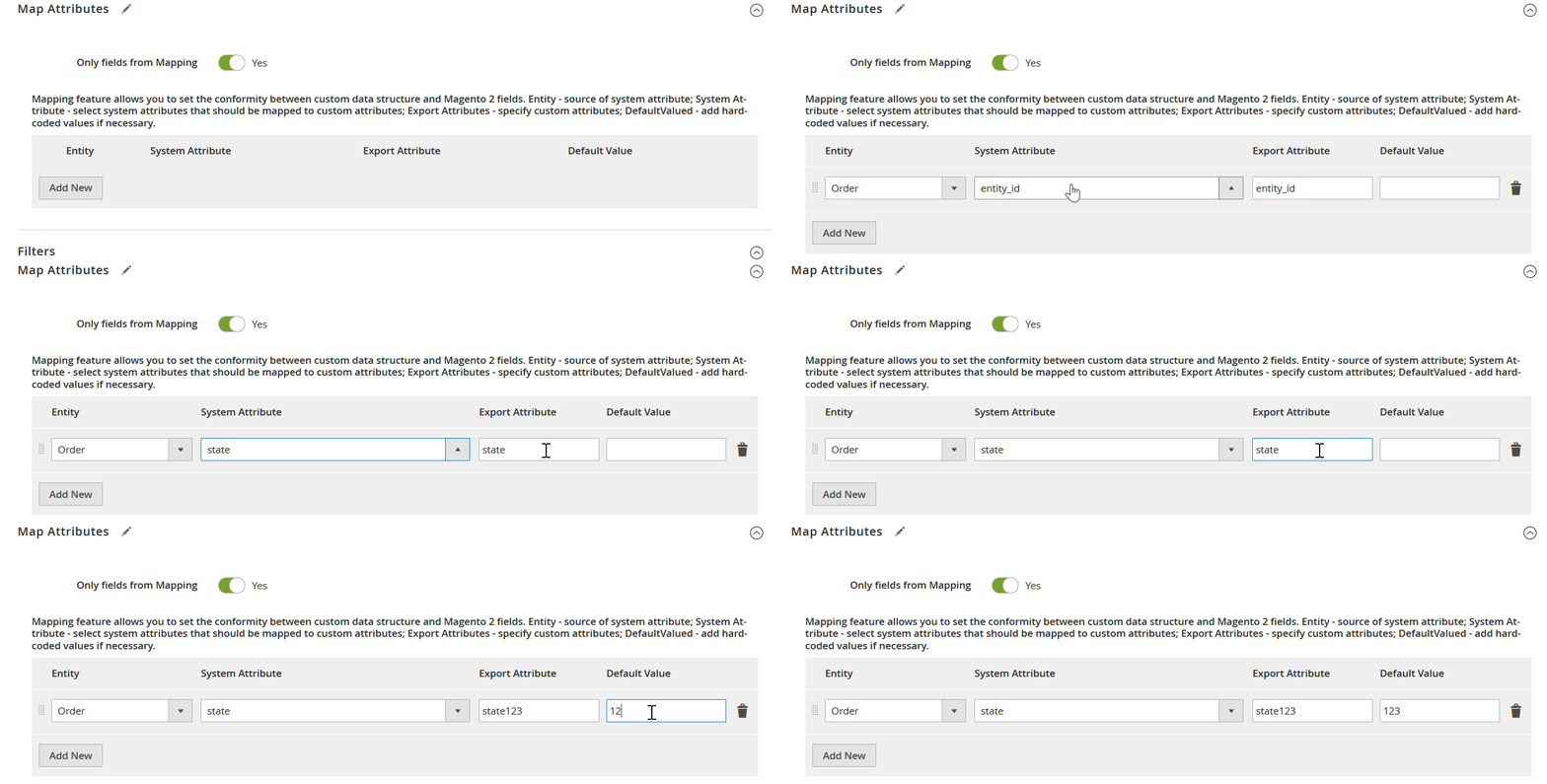
Step 6: Save and Run the Export
After the export entity, format, mappings, destination, and schedule are configured, save the job and run it.
The generated file contains source-level Magento inventory data that can then be consumed by the ERP, WMS, supplier platform, reporting system, or another application.
From that point onward, the same export configuration can run automatically according to the selected schedule.
You can learn more about the corresponding workflow in our current Magento 2 MSI guide.
Final Words: Build a More Efficient Magento Inventory Management Workflow
Effective Magento inventory management depends on more than simply updating product quantities. A reliable workflow combines stock settings, product-level rules, multiple inventory sources, salable quantity calculations, reservations, fulfillment logic, and — for more complex businesses — synchronization with ERP, WMS, supplier, and other external systems.
For smaller catalogs, native Magento 2 inventory management and Magento 2 stock management tools may be enough. As inventory becomes distributed across multiple warehouses, sales channels, or business systems, however, manual updates become harder to maintain and more likely to create stock discrepancies.
This is where automation becomes especially valuable.
With Improved Import & Export for Magento 2, you can build recurring inventory workflows that import and export stock source quantities along with other product data, transfer stock sources including their geographical data, map external fields to Magento attributes, work with multiple file formats and data sources, and automate data exchange with ERP, WMS, suppliers, Google Sheets, and other platforms.
Instead of repeatedly preparing inventory files by hand, you can create reusable jobs that keep Magento stock data synchronized according to your business requirements.
If you need help building a more advanced Magento inventory management integration, configuring MSI import and export, or connecting Magento with an ERP, WMS, supplier, or another external system, contact Firebear. We can help you design a reliable data exchange workflow around your existing infrastructure and automate the inventory processes that would otherwise require manual work.
Download Improved Import & Export Magento 2 Extension
Magento Inventory Management FAQ
What is Magento inventory management?
Magento inventory management is the set of techniques based on built-in tools of Magento Open Source and Adobe Commerce used to track product quantities, control stock availability, manage inventory sources, and determine how much inventory can be sold through different sales channels. It includes product-level stock settings, multi-source inventory, salable quantity calculations, reservations, backorders, and fulfillment-related controls.
How does Magento 2 inventory management work?
Magento 2 inventory management uses sources, stocks, sales channels, quantities, salable quantities, and reservations to control product availability. Sources represent inventory locations such as warehouses or stores, while stocks connect those sources to sales channels. Magento then calculates how much inventory can be sold and adjusts availability as orders, reservations, shipments, cancellations, and refunds occur.
What is the difference between Magento inventory management and Magento stock management?
Magento stock management usually refers to controlling product quantities, stock status, backorders, thresholds, and purchase limits. Magento inventory management is broader and also includes inventory sources, stocks, sales channels, salable quantity, reservations, multi-source fulfillment, and integrations with ERP, WMS, supplier, and other external systems.
What is Magento 2 Multi-Source Inventory?
Magento 2 Multi-Source Inventory, commonly known as MSI, is the inventory architecture that lets merchants manage product quantities across multiple warehouses, stores, pickup points, and other inventory locations. Each location is represented as a source, while stocks aggregate source inventory and connect it to Magento sales channels.
What is the difference between quantity and salable quantity in Magento 2?
Quantity represents the physical inventory available at a Magento source. Salable quantity represents how much inventory Magento currently considers available for customers to purchase through a particular stock. Salable quantity can differ from physical quantity because Magento also considers reservations, stock thresholds, and inventory assigned to the relevant sales channel.
Can Magento 2 manage inventory across multiple warehouses?
Yes. Magento 2 inventory management supports multiple inventory sources, allowing the same SKU to have different quantities in different warehouses, retail stores, fulfillment centers, or other locations. Sources can be grouped into stocks and connected with sales channels, while Magento can use source selection logic to determine where orders should be fulfilled.
Can Magento inventory management integrate with ERP or WMS systems?
Yes. A Magento inventory management integration can connect Magento with ERP, WMS, supplier, POS, marketplace, or other external platforms. Typical integrations synchronize SKUs, source quantities, stock status, orders, shipments, tracking information, and sometimes product or pricing data. The integration should clearly define which system is the source of truth for each type of inventory data.
How can I automate Magento stock updates from an ERP, supplier, or warehouse?
You can automate Magento stock management by creating recurring data synchronization workflows between Magento and the external system. With Improved Import & Export, inventory jobs can import source quantities on a schedule, map external column names to Magento attributes, process different file formats, and retrieve data from sources such as FTP/SFTP, URLs, Google Sheets, or other supported locations.
Can Magento 2 import and export MSI stock source quantities?
Yes. Magento supports native import and export of source-level inventory data as a separate entity called Stock Sources, using fields such as source_code, sku, status, and quantity. Improved Import & Export expands this workflow with the ability to transfer actual stock sources as well as add stock source quantities and other MSI parameters to default product transfers. In addition to that, the extension improves the default Magento 2 inventory management workflow with scheduled jobs, attribute mapping, additional file formats, external data sources, and reusable import/export configurations for Magento MSI inventory synchronization.
What is the best way to improve Magento inventory management?
The best approach depends on the size and complexity of the business. Start with accurate global and product-level stock settings, use appropriate stock thresholds and backorder rules, configure multiple sources correctly, and monitor inventory availability. For larger operations, combine Magento with ERP or WMS software for forecasting, purchasing, warehouse management, and replenishment, and automate inventory data exchange to reduce manual updates and stock discrepancies.
Please enable JavaScript to view the comments powered by Disqus.


