
E-Commerce, Magento 2, Our extensions
<!–
–>

Store credit in Magento 2 is a useful feature that gives merchants a flexible way to issue value to customers and let them use it toward future purchases. But there is an important distinction to make from the start: Magento 2 store credit is a native Adobe Commerce feature and is not available in Magento Open Source out of the box.
In this guide, we explain what Magento 2 store credit is and how it works. You will learn what it is and how to configure and use store credit in Adobe Commerce. We also clarify how you can add similar functionality as a Magento Open Source merchant. Another important aspect that this guide covers is Magento 2 store credit import and export, which is not supported by the platform’s default tools and requires an additional solution such as Improved Import & Export. But before going any further, let’s start with the basics.

Table of contents
- What Is Magento 2 Store Credit?
- Magento 2 Store Credit in Adobe Commerce vs. Magento Open Source
- Typical Magento 2 Store Credit Workflow in Adobe Commerce
- How to Configure Magento 2 Store Credit in Adobe Commerce
- How to Use Magento 2 Store Credit in Adobe Commerce
- Customer Side: Applying Store Credit During Magento 2 Checkout
- How to Import and Export Magento 2 Store Credit Data
- Final Words: Store Credit in Adobe Commerce and Magento 2 Open Source
- Magento 2 Store Credit FAQ
What Is Magento 2 Store Credit?
Magento 2 store credit is a balance added back to a customer’s account that can be used to pay for future purchases. In Adobe Commerce, administrators can also use store credit when processing cash refunds. In addition, a gift card balance can be transferred to a customer’s account as store credit, allowing the customer to use the available amount without entering the original gift card code at checkout.
Store credit is closely connected with the credit memo process. After an order has been paid and invoiced, an administrator can refund the full order or only part of it by issuing a credit memo. Unlike a standard refund, a credit memo can restore the refunded amount to the customer’s account as store credit in Magento 2, where it remains available for a future purchase. A refund and store credit can also be used together, depending on how the refund is processed and configured.
The amount of store credit for Magento 2 customers is controlled through the store’s configuration. Once credited, the balance becomes available in the customer account and can be applied to eligible purchases.
One important configuration detail applies when store credit covers the entire order total. In this case, Zero Subtotal Checkout must be enabled as a payment method. This allows customers to complete an order when their available Magento store credit covers the full amount due.
Magento 2 Store Credit in Adobe Commerce vs. Magento Open Source
There is an important edition-specific detail to understand before working with Magento 2 store credit. The native Store Credit functionality is available in Adobe Commerce (including Adobe Commerce on-premises and on the cloud) but is not included in Magento Open Source by default. In other words, merchants using the Open Source edition cannot simply enable the same Store Credit feature from the standard Magento configuration.
How to Enable Store Credit in Magento Open Source
If you want to offer store credit in an Open Source store, you need a third-party Magento 2 extension that adds the required customer balance, checkout, refund, and credit management capabilities. Several extensions currently provide this functionality for Magento Open Source, including:
- Amasty Store Credit & Refund — provides store credit functionality, including the ability to refund to a store credit balance and apply credit to taxes and shipping. Amasty also documents its integration with the company’s Gift Card extension.
- Aheadworks Store Credit and Refund — adds store credit for purchases and refunds, customer balance management, credit transaction tracking, and checkout support. The current version supports Magento Open Source 2.4.6–2.4.9.
- MageAnts Store Credit — provides store credit functionality for Magento Open Source and is currently listed as compatible with Magento 2.4.
- Meetanshi Store Credit — adds customer store credit functionality and supports exporting store credit transactions in CSV or XML. Its current marketplace listing supports Magento Open Source 2.4.
- Plumrocket Store Credit & Refund — provides store credit and refund functionality and is currently listed as compatible with Magento Open Source 2.4.
The exact feature set varies between extensions, so Open Source merchants should compare supported Magento versions, refund workflows, checkout behavior, API capabilities, and store credit import/export options before choosing a solution. But let’s return to the Magento 2 Store Credit functionality associated with Adobe Commerce.
Typical Magento 2 Store Credit Workflow in Adobe Commerce
The Magento 2 store credit workflow is pretty straightforward: customers apply their available balance during checkout, while Magento automatically deducts the used amount from their account after the order is placed. Here is how store credit in Magento 2 works from the customer’s perspective:
- Customer logs in. The customer must be logged into their account before starting the checkout process. This allows Adobe Commerce to identify the customer and retrieve the available Magento store credit balance associated with their account.
- Customer applies store credit. During the Review & Payments step of checkout, the customer can select Use Store Credit as a payment option. The available store credit balance is displayed next to the option, in parentheses. If the customer’s balance is higher than the order grand total, Magento uses the store credit to cover the entire purchase (Zero Subtotal Checkout must be enabled), and other payment methods are no longer displayed.
- Store credit is applied to the order. Once selected, the amount of store credit applied to the purchase is shown together with the order totals. The credited amount is deducted from the grand total, leaving only the remaining amount, if any, to be paid through another available payment method.
- Customer balance is updated. When the order is placed, Adobe Commerce adjusts the customer’s available store credit balance according to the amount used. The remaining Magento 2 store credit stays associated with the customer account and can be used for future purchases.
How to Configure Magento 2 Store Credit in Adobe Commerce
To configure the Magento 2 store credit feature in Adobe Commerce, follow these steps:
- Log in to the Adobe Commerce Admin.
- Go to Stores > Settings > Configuration.
- In the left-hand menu, expand Customers and select Customer Configuration.
- Expand the Store Credit Options section.
- Set Enable Store Credit Functionality to Yes.
- Configure the available store credit options:
- Show Store Credit History to Customers.
- Refund Store Credit Automatically.
- Select the Store Credit Update Email Sender.
- Select the Store Credit Update Email Template.
- Click Save Config to apply the changes.

Once enabled, customers with an available balance can see their Magento 2 store credit in their account and apply it during checkout. If the available credit covers the entire order total, Adobe Commerce can use the credit as the payment method for the order.
Magento 2 Store Credit Configuration Options Explained
Here is what the settings mentioned above do:
| Setting | What it controls |
| Enable Store Credit Functionality | Turns Adobe Commerce store credit on or off. |
| Show Store Credit History to Customers | Allows customers to review changes to their store credit balance. |
| Refund Store Credit Automatically | Enables automatic conversion of eligible refunds into customer store credit. |
| Store Credit Update Email Sender | Defines which store identity sends store credit notifications. |
| Store Credit Update Email Template | Defines the email template used for store credit balance updates. |
How to Use Magento 2 Store Credit in Adobe Commerce
Once Magento 2 store credit is enabled, you can, as an administrator, manage customer balances, review credit history, and apply available credit to orders. Customers can also use their balance directly during checkout. The workflow is straightforward, but it is useful to understand how Adobe Commerce handles the balance at each stage.
How to View a Customer’s Store Credit Balance in Magento 2 Admin
You can check how much store credit a customer currently has without changing the balance as follows:
- In the Admin, go to Customers > All Customers.
- Find the required customer in the customer grid.
- Click Edit in the Action column.
- In the left panel, choose Store Credit, and scroll down to locate Store Credit Balance.

This lets you quickly verify whether a customer has credit available before processing a refund, creating an order on the customer’s behalf, or handling a support request.
How to Update the Magento 2 Store Credit Balance
You can also manually increase or decrease a customer’s store credit balance on the same screen as above. This is useful for issuing compensation, correcting an account balance, or granting credit as part of a customer service workflow. Just follow these steps:
- Go to Customers > Operations > All Customers in the Admin.
- Find the customer and click Edit.
- Select Store Credit in the left panel.
- Choose the website (storefront) associated with the credit balance.
- Enter the new value in Update Balance.
- If the customer should receive an email notification, enable Notify Customer by Email and select the appropriate store view.
- Add a Comment explaining why the balance was changed.
- Click Save and Continue Edit or Save Customer.

Adobe Commerce records the change in Balance History, giving administrators a record of how the customer’s store credit has been adjusted.

The website selection is particularly important for stores operating multiple websites. Store credit is associated with a specific website, so administrators should make sure they update the balance in the correct storefront context.
How to Apply Adobe Commerce Store Credit to an Order from the Admin
Adobe Commerce also allows you to use a customer’s available store credit balance when creating an order on their behalf.
After adding the products and entering the required order information, the available credit appears in the Payment & Shipping Information section. As an admin, you can select Use Store Credit to apply it to the order.

If the customer’s credit balance is larger than the order total, only the amount needed for the order is applied. The remaining balance stays available in the customer’s account for future purchases.
Customer Side: Applying Store Credit During Magento 2 Checkout
As for customers, they can also apply their available credit themselves from the storefront.
- The customer logs in and proceeds through checkout.
- During the Review & Payments step, Adobe Commerce displays the available amount under Store Credit.
- The customer clicks Use Store Credit.
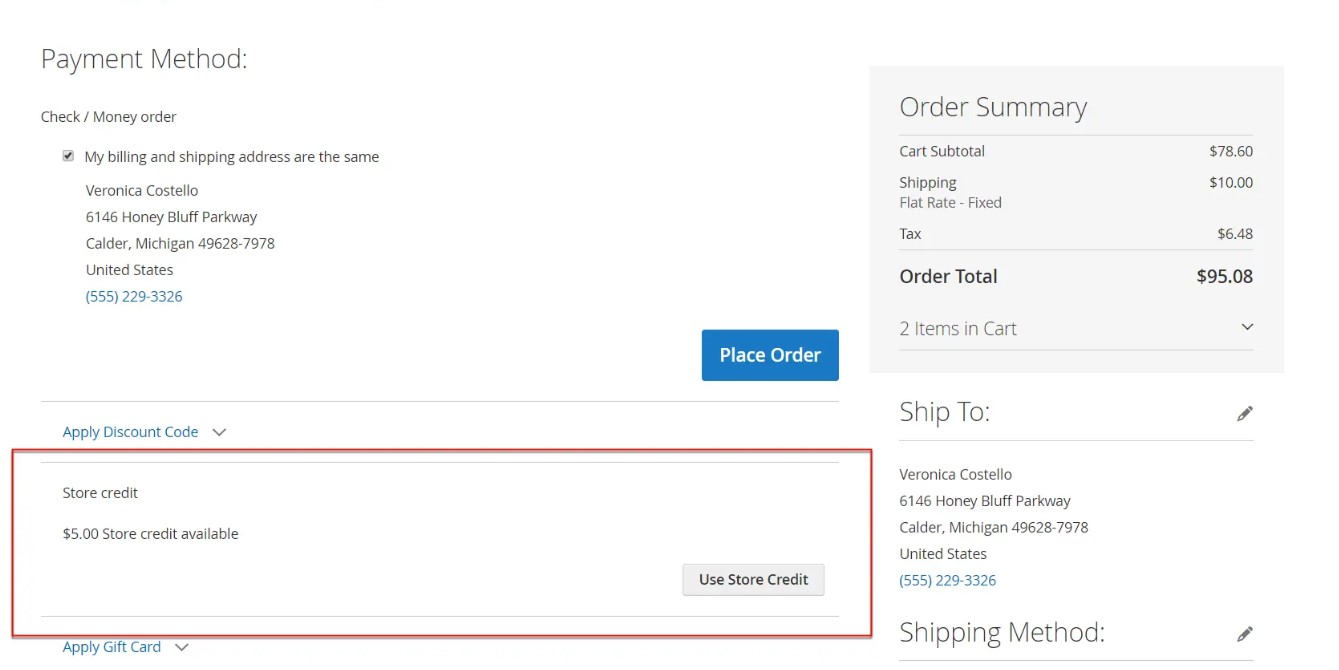
- Adobe Commerce recalculates the order total and displays the amount of credit applied in the Order Summary.
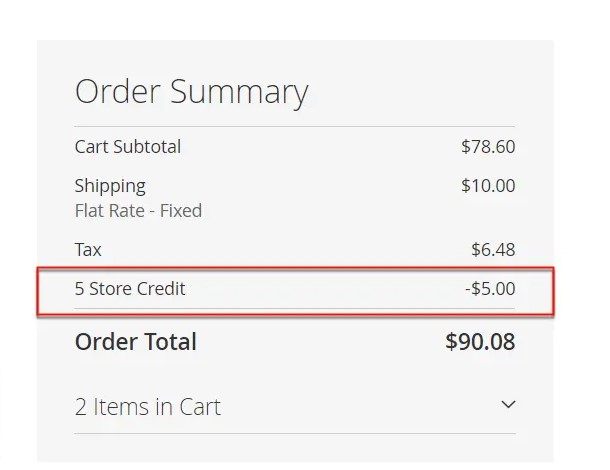
- The customer reviews the updated total and clicks Place Order.


If the available store credit is enough to cover the entire order, it can cover the grand total, and other payment methods may no longer be necessary. Adobe Commerce requires the Zero Subtotal Checkout payment method to be enabled when store credit covers the complete order total.
The important part of the Magento 2 store credit workflow is that the balance is adjusted when the order is placed. In other words, applying credit during checkout changes the amount due for the current order, while the corresponding amount is deducted from the customer’s available store credit after the purchase is submitted.
If customers apply the credit during checkout and then change their mind, they can select Remove in the Order Summary to return the credit to the available balance before placing the order.

Customers can also review their store credit from the Store Credit section of their account dashboard.
For further information regarding the Magento 2 Store Credit functionality, refer to this page in the official documentation.
How to Import and Export Magento 2 Store Credit Data

Native Magento 2 store credit import and export can be a challenge when you need to move customer credit balances between systems, update large numbers of records, or automate recurring data transfers. While Adobe Commerce provides built-in store credit functionality, merchants often need additional tools to handle Store Credit data as part of broader Magento 2 data migration and integration workflows.
Third-party import/export solutions can extend these capabilities, but their feature sets vary considerably. Many tools focus on a limited number of entities or support only basic import and export operations. For a more flexible Magento 2 Store Credit data import and export workflow, you may need features such as field mapping, scheduled jobs, multiple file formats, and connections to external systems.
This is where the Improved Import & Export Magento 2 extension can help. The extension supports Store Credit data alongside a wide range of other Magento 2 entities, allowing you to incorporate customer credit into regular data migration, synchronization, and integration processes.
How to Import Magento 2 Store Credit Data
With Improved Import & Export, you can configure a dedicated import job for Magento 2 Store Credit data. The general workflow is as follows:
- Go to System → Improved Import / Export → Import Jobs in the Magento 2 Admin.
- Click Add New Job to create an import profile.
- Configure the General Settings, including the job name and other basic parameters.
- Open the Import Settings section and select Store Credit Data from the Entity dropdown.
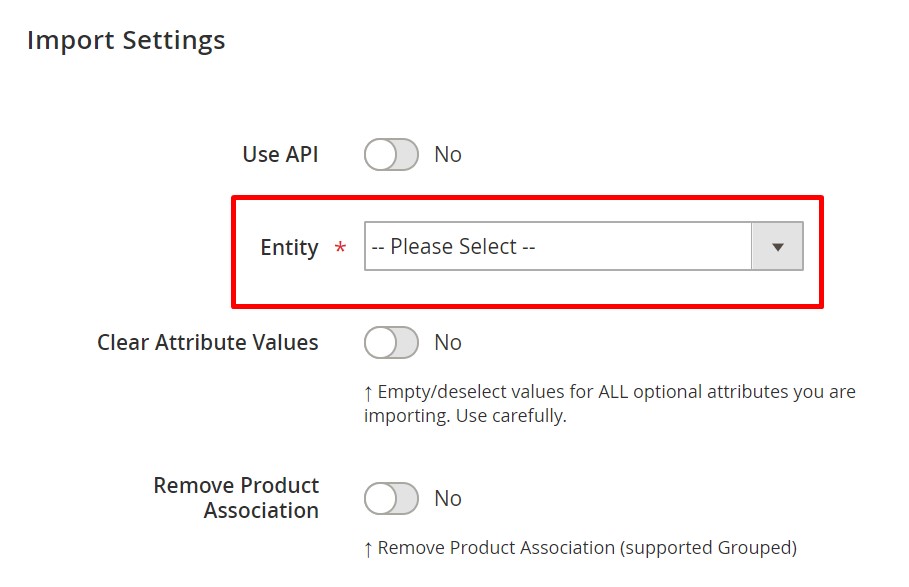
- Configure the remaining import options, including the source file and data-transfer settings required for your particular workflow.
- Save the import job and run it to transfer the Store Credit data into Magento 2.

The extension can also be used to incorporate Store Credit into more complex Magento 2 data workflows. Depending on the configuration, merchants can map incoming fields to Magento attributes, transform data, and automate recurring imports instead of manually uploading Store Credit files every time.
How to Export Magento 2 Store Credit Data
The Magento 2 Store Credit export workflow follows a similar approach:
- Go to System → Improved Import / Export → Export Jobs.
- Click Add New Job.
- Configure the general export settings.
- Select Store Credit Data as the entity to export.
- Configure the destination and other export parameters.
- Save the job and run it.
The resulting Store Credit data can then be used for migration, backup, analysis, synchronization, or transfer to an external system.
Get Improved Import & Export Magento 2 Extension
Final Words: Store Credit in Adobe Commerce and Magento 2 Open Source
The Magento 2 store credit functionality introduces a practical way to compensate customers, process refunds, encourage repeat purchases, and give shoppers an alternative to traditional refunds. In Adobe Commerce, Store Credit is available as a native feature, with tools for managing customer balances, applying credit at checkout, and tracking credit activity.
However, managing store credit becomes more complicated when you need to import or export Magento 2 Store Credit data. Large-scale migrations, integrations, recurring synchronization, and external data management often require capabilities beyond the standard Magento toolkit. A dedicated import/export solution can simplify these workflows while providing greater control over data mapping, transformation, and automation.
With Improved Import & Export, you can include Store Credit data in broader Magento 2 data-transfer processes and handle it alongside other customer and ecommerce entities. This can save time when migrating a store or connecting Magento with external systems.
Need help with a Magento 2 Store Credit import or export project? Contact Firebear Studio to discuss your requirements and find the most suitable way to transfer and synchronize your Store Credit data.
Magento 2 Store Credit FAQ
What is Magento 2 Store Credit?
Magento 2 Store Credit is a customer account balance that can be used to pay for purchases in an online store. In Adobe Commerce, merchants can issue store credit, apply it to orders, use it for refunds, and let customers spend their available balance during checkout.
Is Store Credit available in Magento Open Source?
No. Store Credit is a native Adobe Commerce feature and is not included in Magento Open Source by default. Magento Open Source merchants can add similar functionality through third-party store credit extensions or custom development.
How do I enable Store Credit in Adobe Commerce?
Go to Stores > Settings > Configuration > Customers > Customer Configuration > Store Credit Options in the Adobe Commerce Admin. Enable Store Credit Functionality and configure options such as credit history visibility, refund behavior, and email notifications.
How does Magento 2 Store Credit work at checkout?
A logged-in customer with an available store credit balance can select Use Store Credit during checkout. Adobe Commerce deducts the applied amount from the order total. If the credit does not cover the entire purchase, the customer can pay the remaining balance using another available payment method.
Can customers see their Magento 2 Store Credit balance?
Yes. Customers can view their available Store Credit from the Store Credit section of their account dashboard. If store credit history is enabled, they can also review transactions that affect their balance.
Can an admin manually add Store Credit to a customer account?
Yes. An Adobe Commerce administrator can open a customer account and update its Store Credit balance. The administrator can also add a comment explaining the adjustment and configure an email notification to inform the customer about the balance change.
Can Magento 2 Store Credit be used for refunds?
Yes. Adobe Commerce can return eligible refunds to a customer’s Store Credit balance. Merchants can configure refund behavior under the Store Credit Options in the Admin. Store Credit can therefore be used as an alternative to returning funds through the original payment method.
Can Magento 2 Store Credit be imported and exported?
Magento 2 Store Credit data may require additional tools when merchants need to perform bulk transfers, migrations, integrations, or automated synchronization. Third-party solutions such as Firebear’s Improved Import & Export can support Store Credit data transfer and provide additional capabilities for mapping and automation.
How can I migrate Store Credit data to Magento 2?
For a Magento 2 Store Credit migration, prepare the source data, map the relevant customer and credit fields to the target Magento structure, and run an import job. Using a dedicated import/export extension can simplify the process, especially when migrating large customer databases or transferring Store Credit together with other Magento entities.
How can I automate Magento 2 Store Credit import and export?
Store Credit data can be included in automated import and export workflows with a specialized Magento 2 data-transfer extension. With Improved Import & Export, merchants can create scheduled jobs and combine Store Credit transfers with broader Magento integration and synchronization processes.
Please enable JavaScript to view the comments powered by Disqus.


